Related resources
Storybook:
AEM components:
- Awaiting delivery
AEM status:
Examples
LMDI
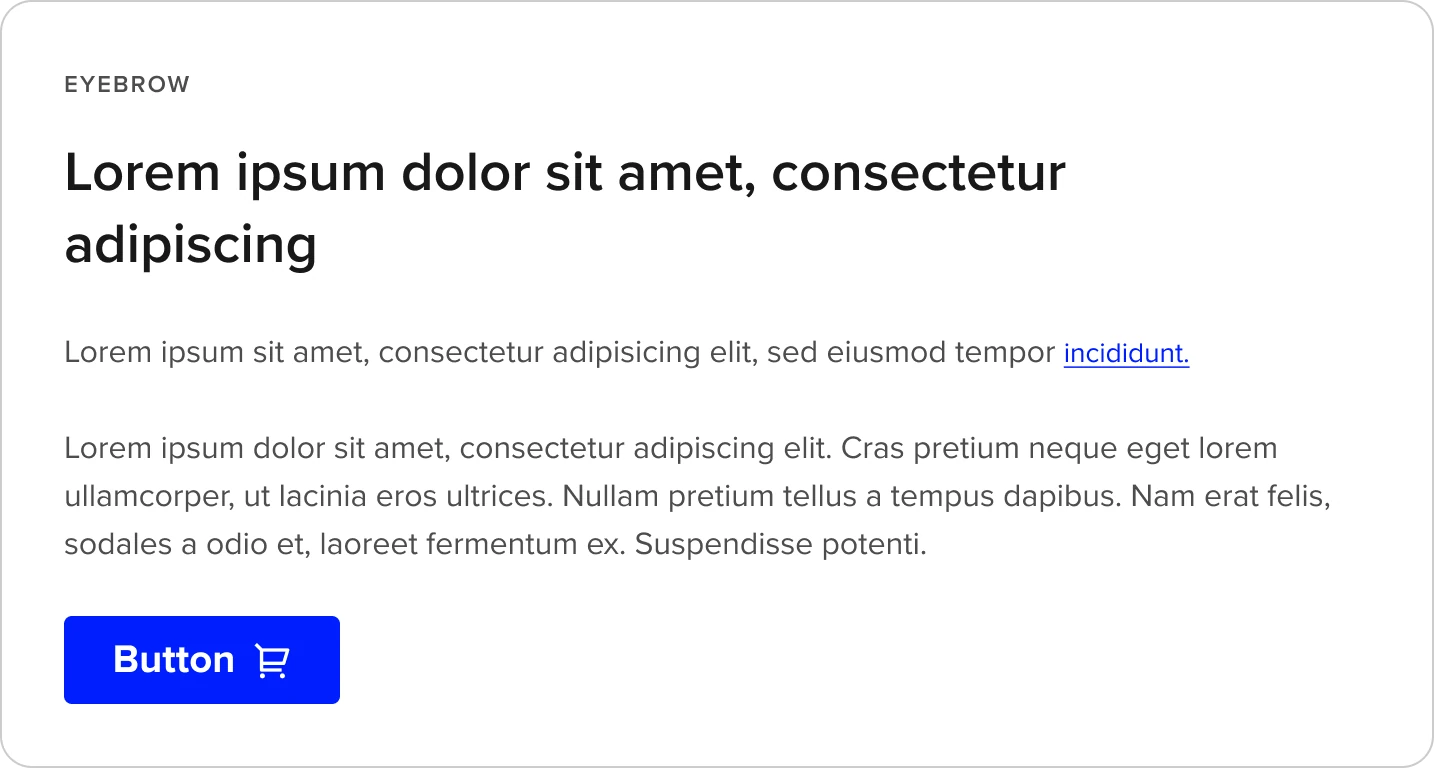
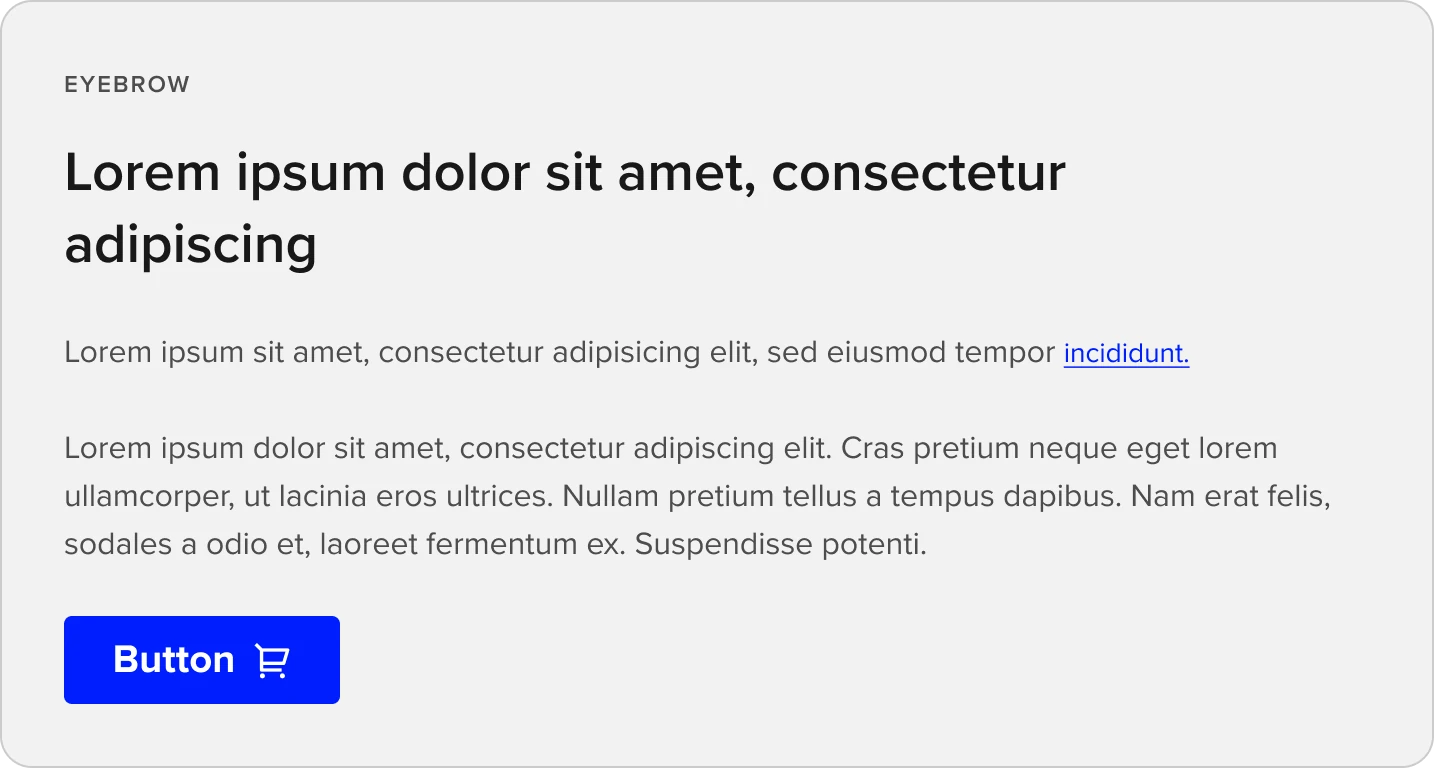
Marketing
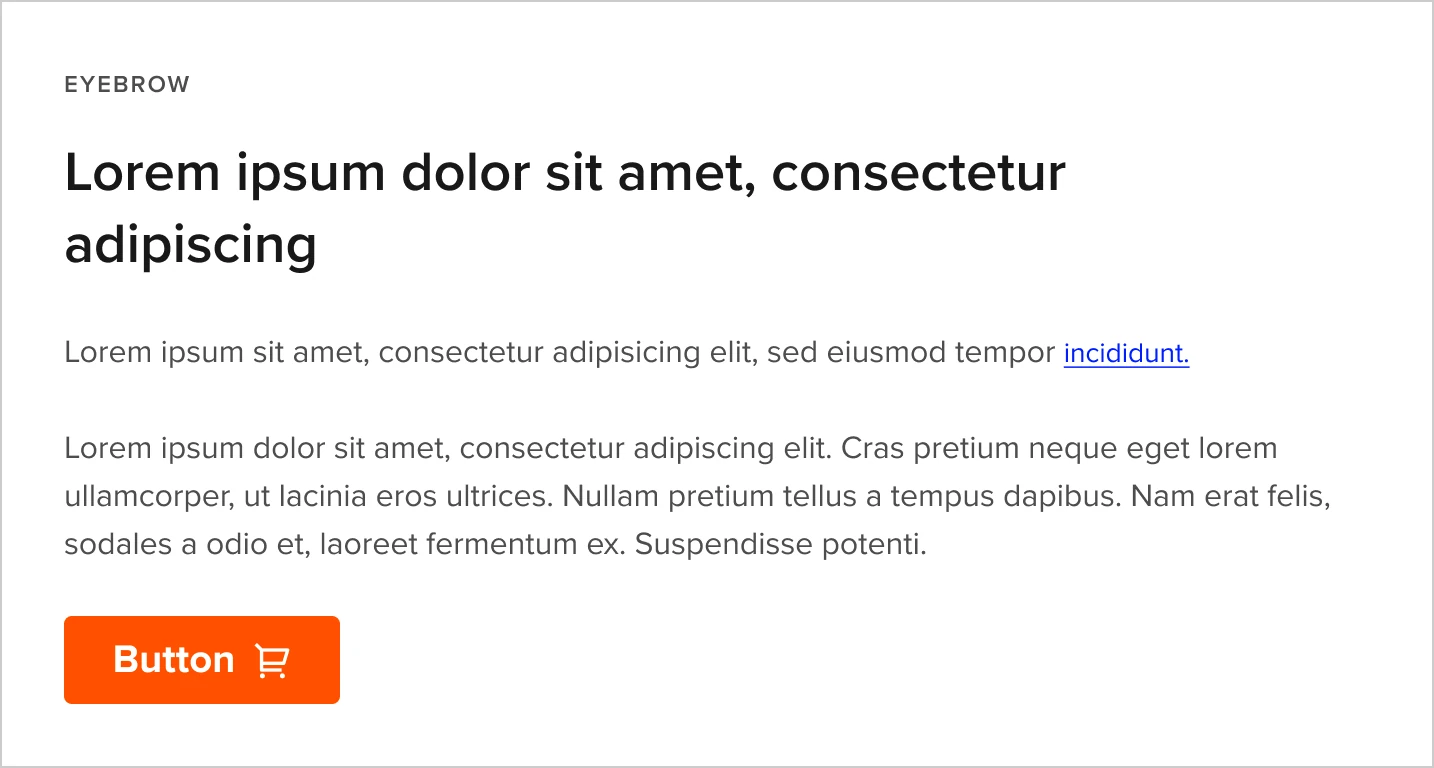
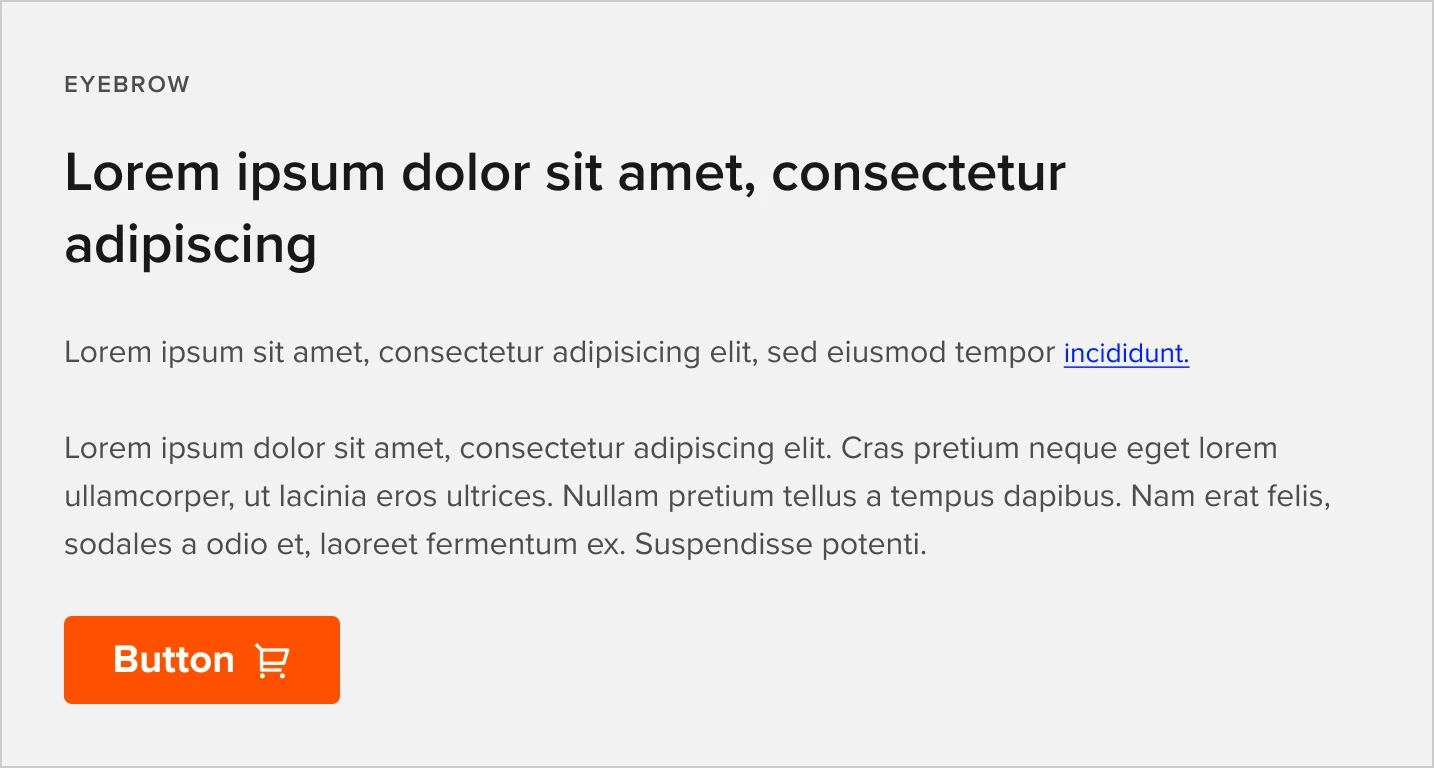
2/3 standard section frame wih Section header, Rich text grid
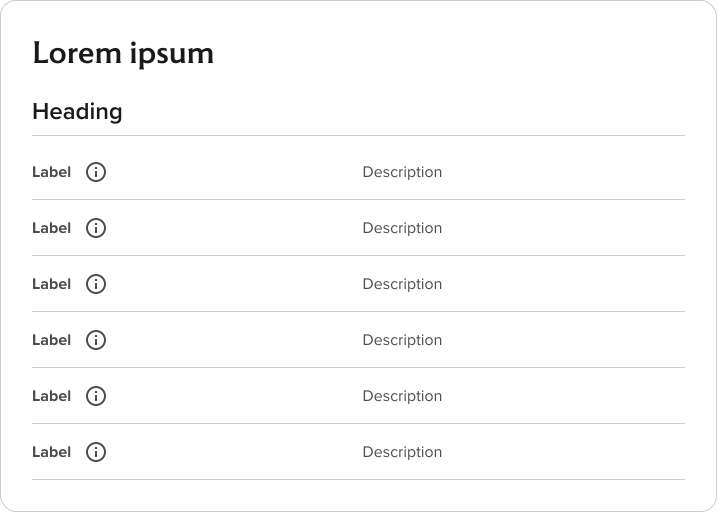
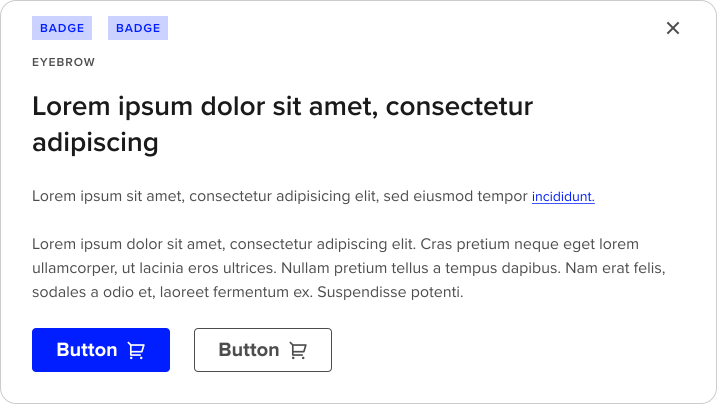
2/3 Dismisible section frame with small heading, badge group, Body copy, and Multiple CTA in the footer
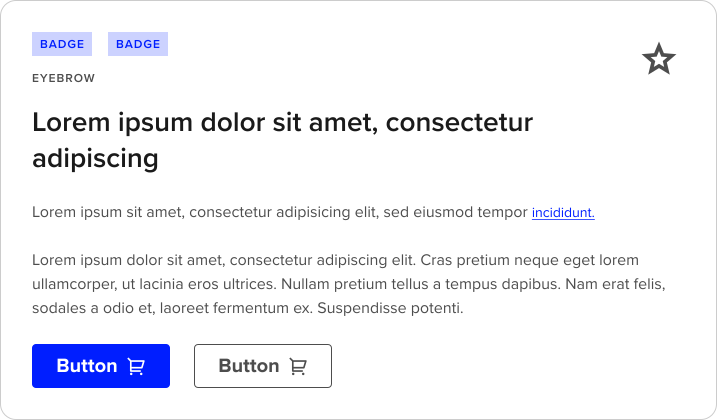
2/3 Standard section frame with heading 3, badge group, corner asset (favorite), Body copy, and Multiple CTA in the footer
Usage
Section frame is flexible frame into which a wide range of components can be placed. The frame is a light grey background that is contained to the content area of a section or sub-section (i.e. a column section of any width inside of a section such as in Column Control). Section frame can support 1 to many components and there is also a variant this dismissible.
How to use
Body content
- Ensure the heading size and semantic level is appropriate to location of the framed content in the overall page hierarchy.
- When used as a Page Header the Heading Style should always be Heading 2 and the Semantic Heading level should be H1
Variants and Properties
| Property name | Property type | Description | Values | Default value |
|---|---|---|---|---|
| Type | Variants | Allows the user to choose the variant that best meets their content needs | Default Dismissible Image | Default |
| Shade | Variants | Allows for a grey background version separate from the white background defaullt | Default Grey | Default |
| Footer | Boolean | Includes a footer section that defaults to a Button Group | True False | False |
| Badge group | Boolean | When included a configurable badge group is included above the Header section | True False | False |
| Show corner asset | Boolean | Includes a configurable “icon” option that includes multiple options for a communicative or interactive element in the top right corner of the frame | True False | False |
| Corner asset type | Variants | Includes options that can be included in the Corner Asset when enabled | Option menu Icon Interactive icon | Interactive icon |
Although the Section Frame is very flexible in terms of the type and extent of content it supports, there are only three distinct variants of the component:
- Default
- Dismissible: for use in rare cases where the content inside the section frame is a temporary notification or instructions that the end user can dismiss and remove from the page
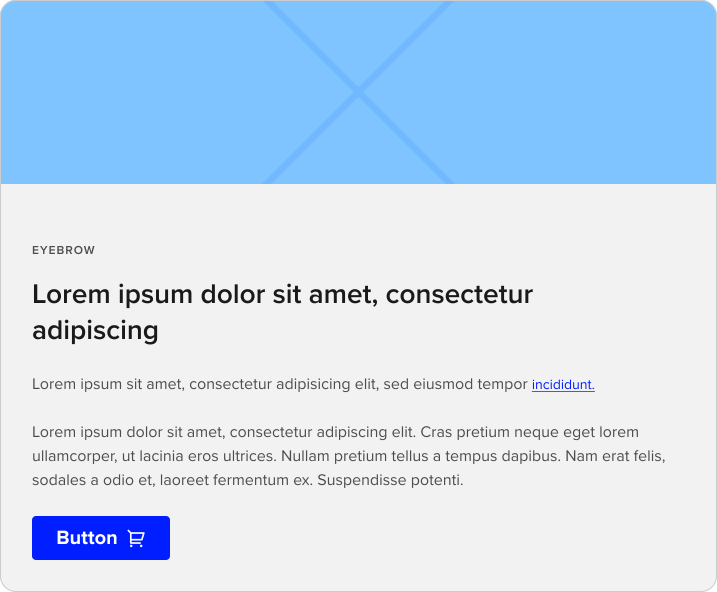
- With image
- Each of these variants is also available in a “grey” shade which is a separate property
Assets
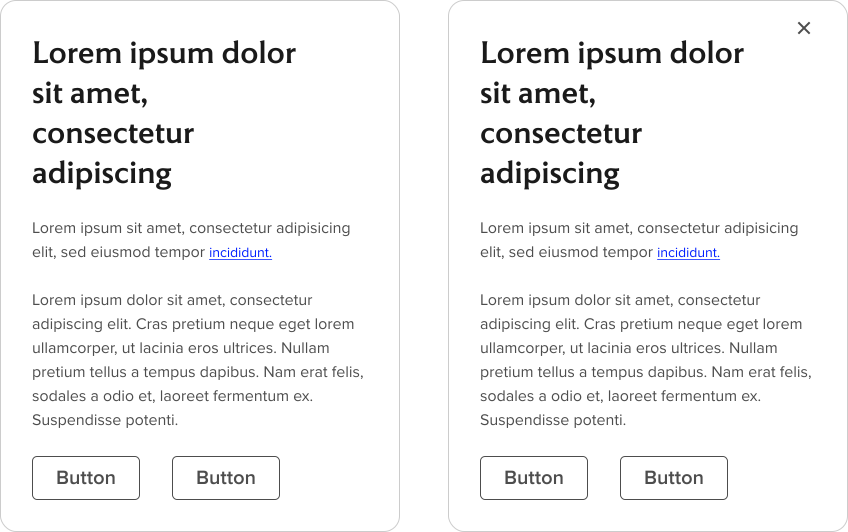
Section Frame - Dismissible includes a “Close” icon closes/removes the frame when selected. The close icon has the following “Default” and “Hover” states.