
Related resources
Storybook:
AEM components:
- Awaiting delivery
AEM status:
Variants
Standard Example
For complex conent like forms or large amounts of content, the larger modal will be more accommodating.
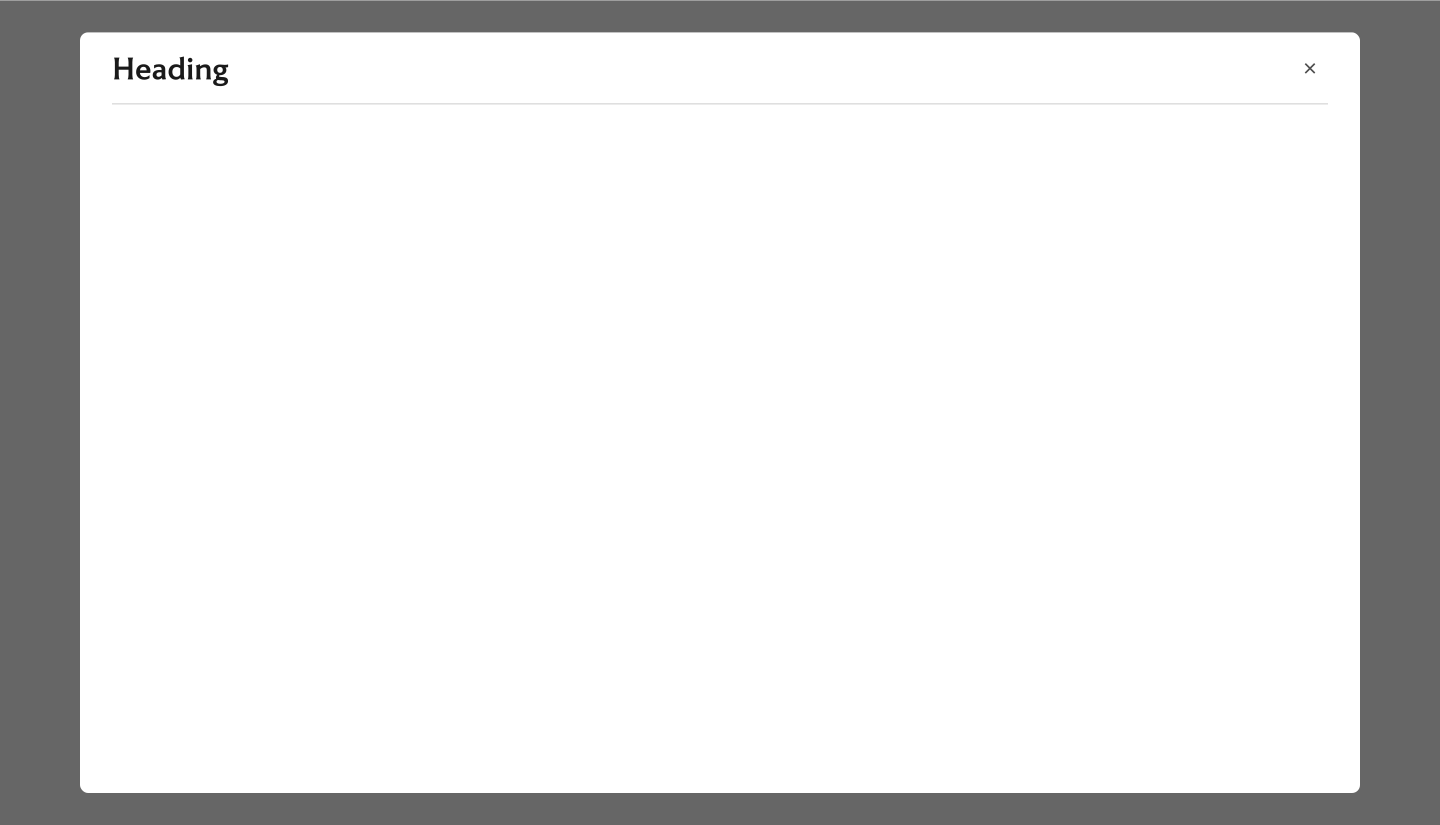
Dialog
A fixed with modal used to display short messages to the user, avoiding long single lines.

Fly-in
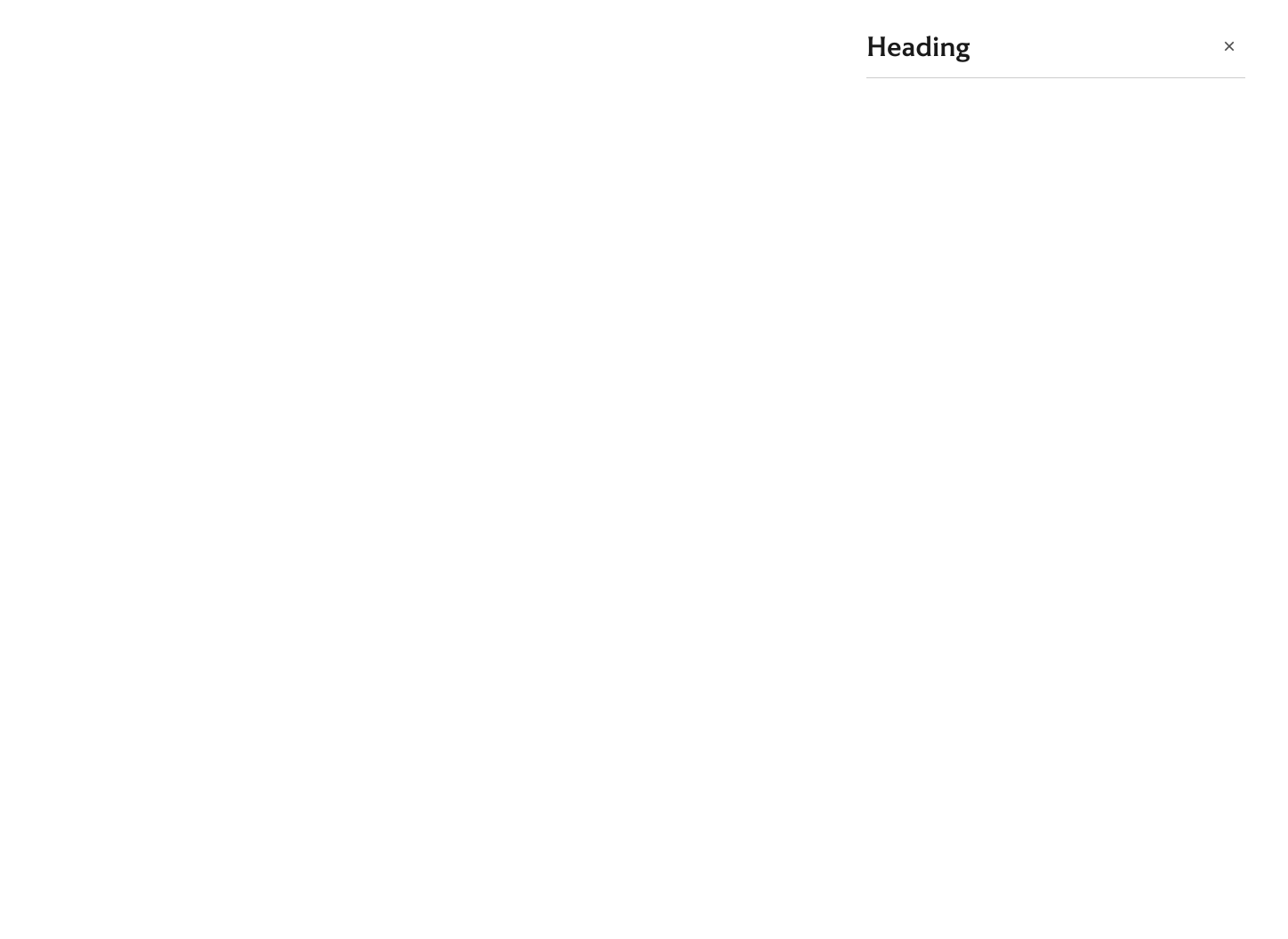
Pops up over the underlying screen showing extra content, on the side of the screen on the right. Suitable for narrow content that may be too long to be easily accommodated by a dialog modal, such as forms.

Modeless Fly-in
Content
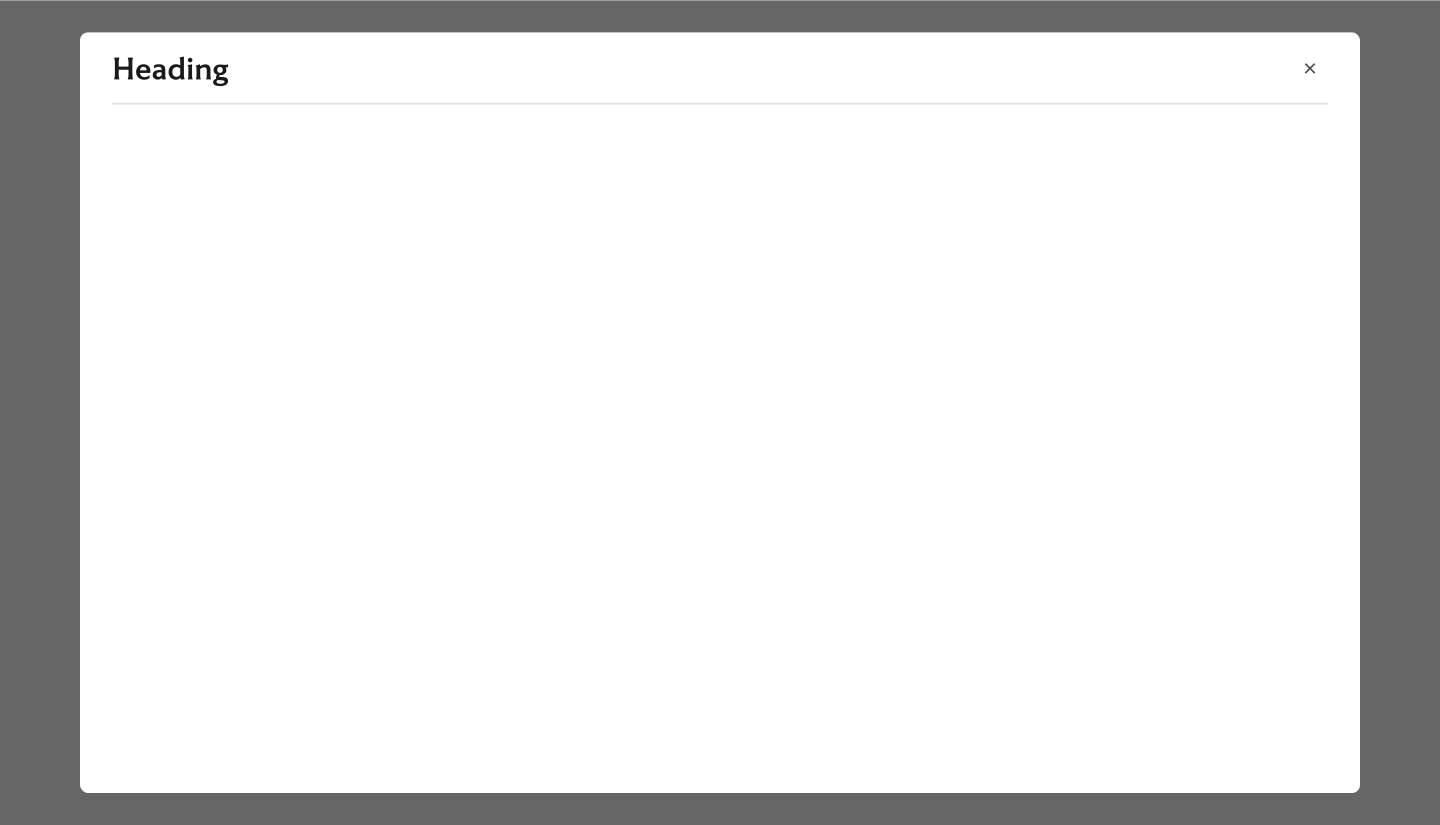
Heading
The heading should be brief, that clearly describes the modal’s task or content, with a maximum of two lines.
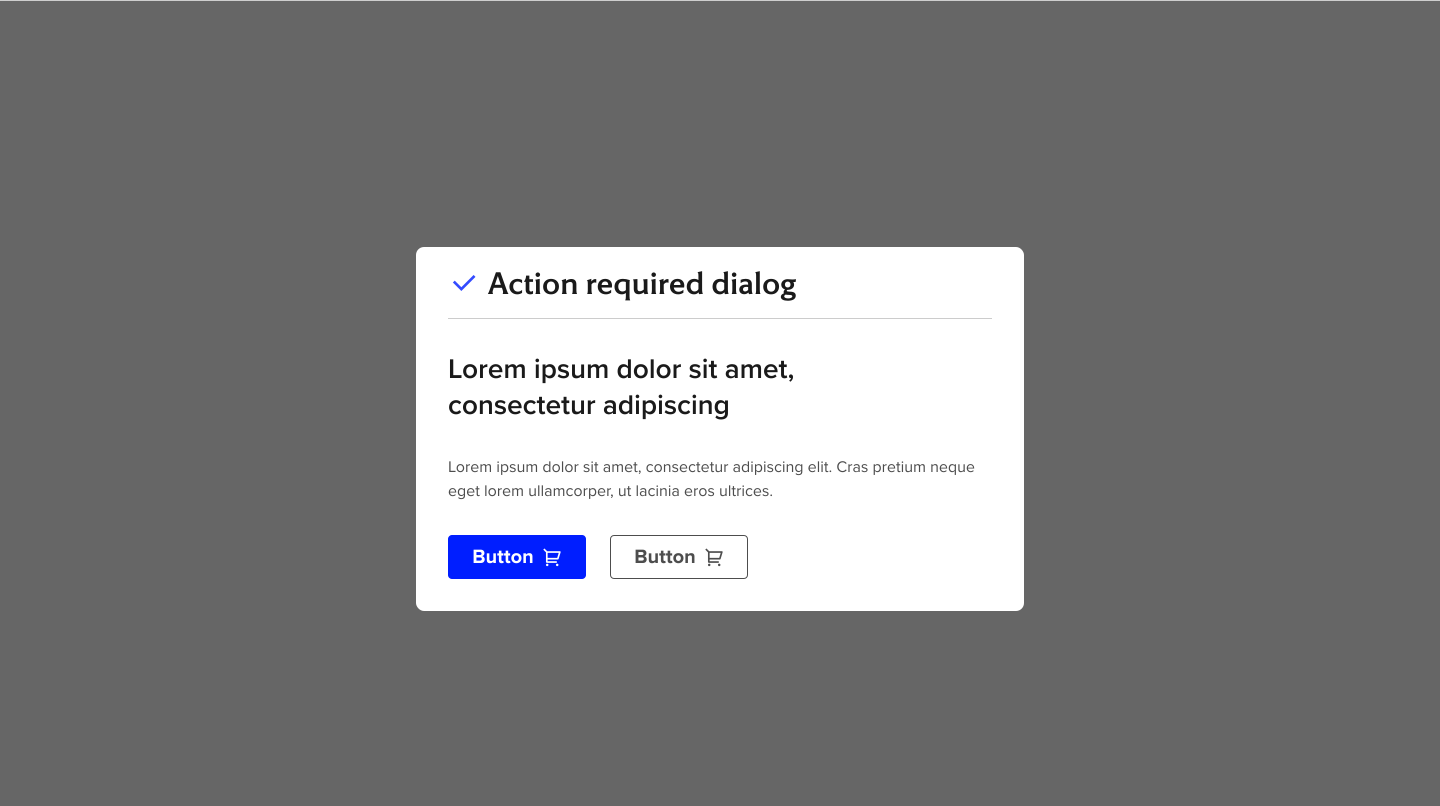
Info icon: Optional informative icon that precedes the heading label to provide a visual cue as to the type of information or action associated with the modal: e.g. Error, Success, Alert.
Close icon: The close icon is included in the component by default. However, in cases where a dialog requires specific action it can be toggled off as long as other required action options are included in the dialog as CTAs. In such cases the only way to continue from the dialog screen is to select one of the provided actions.
Overview
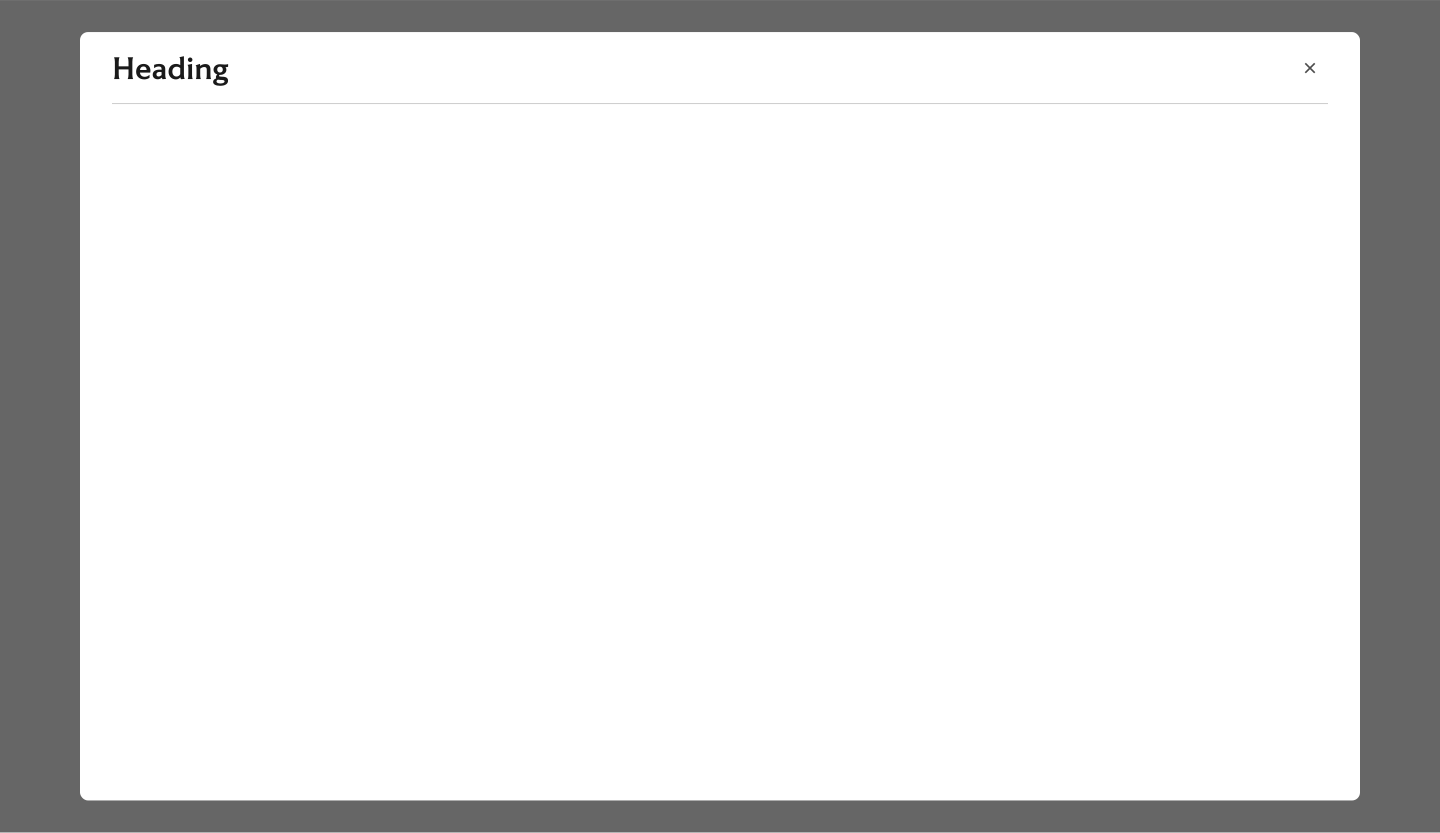
For the full width variant, if the content doesn’t fit within the vertical constraints of the modal, the dialog box of the modal will extend beyond the viewport to indicate there is more content below. When the bottom of the content is reached the padding between the bottom margin below the dialog box will be visible. Design note: when designer are working with this component and the content exceeds the viewport you will need to override the vertical auto-layout contraints from “Fill” to “Hug.”
Behaviors
Triggers
Modals are triggered as a result of a user’s action and are not system generated. Common components that can trigger a modal include, button, link, card or icon.
Loading
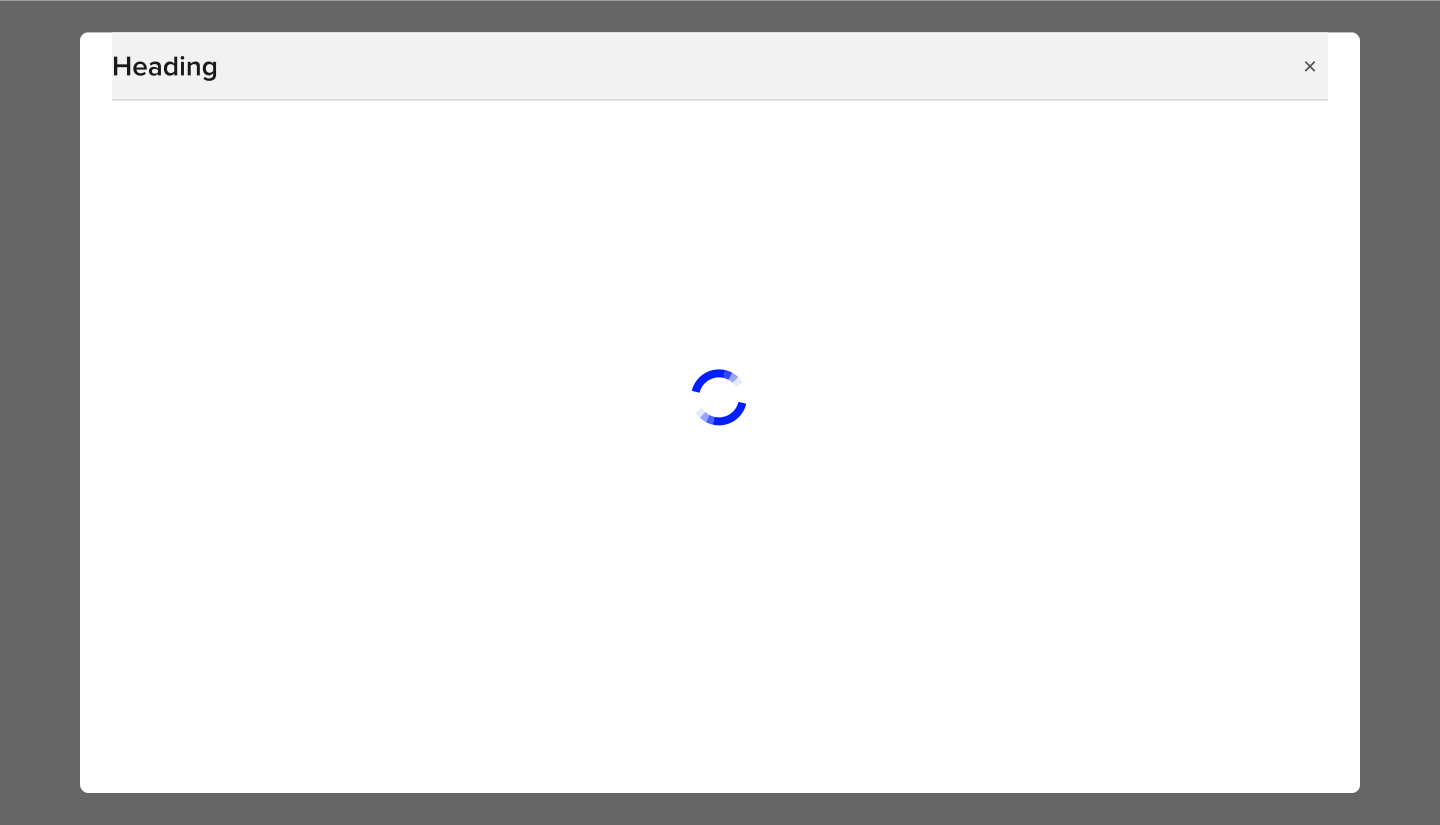
The modal content should appear immediately, if a longer loading period is needed then a loading spinner and overlay should appear on top of the modal body area.
Scrolling
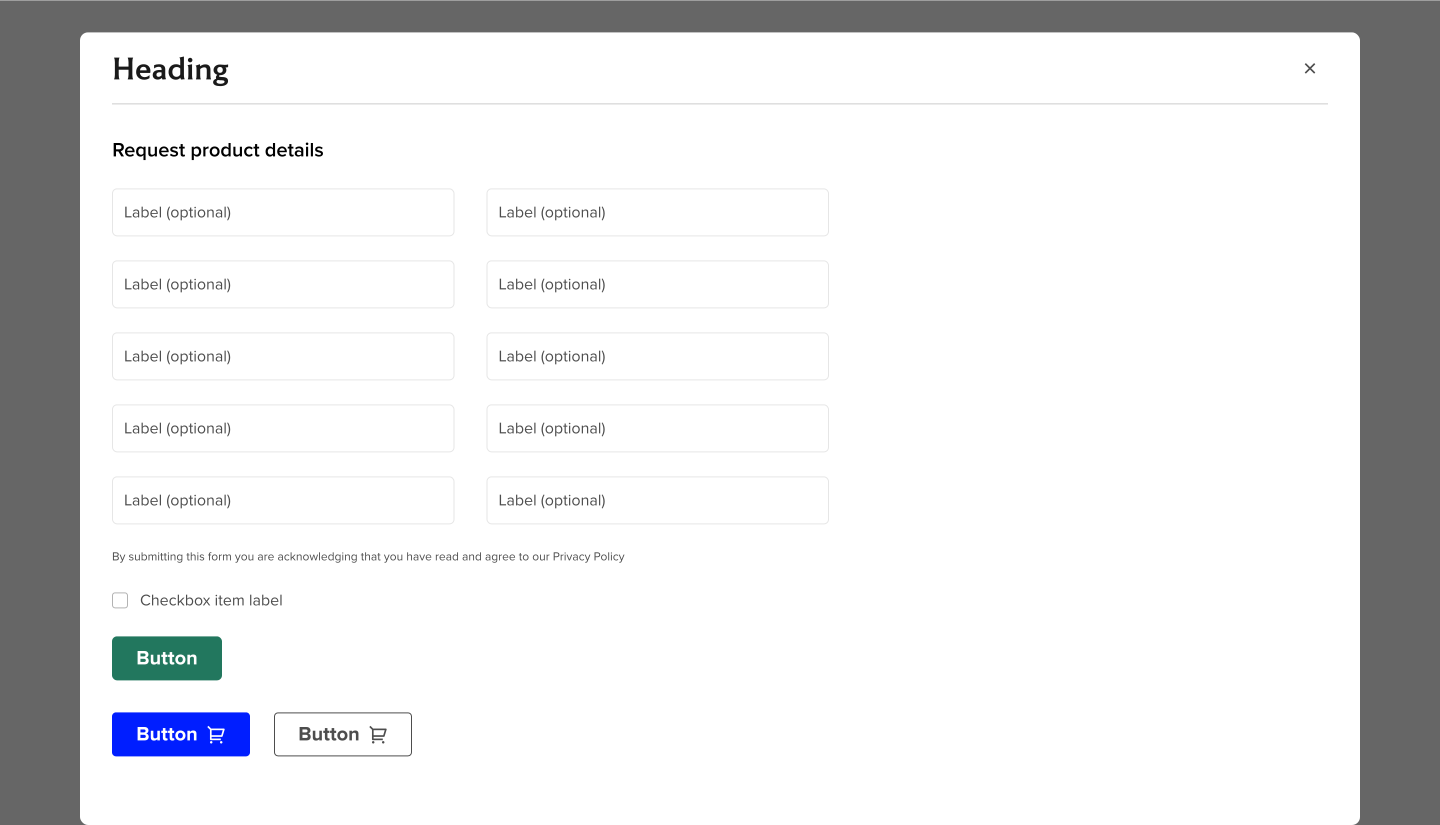
If the content is too long for the content area, a scroll is used to access content off the screen. The heading and close icon are both pinned.
Interactions
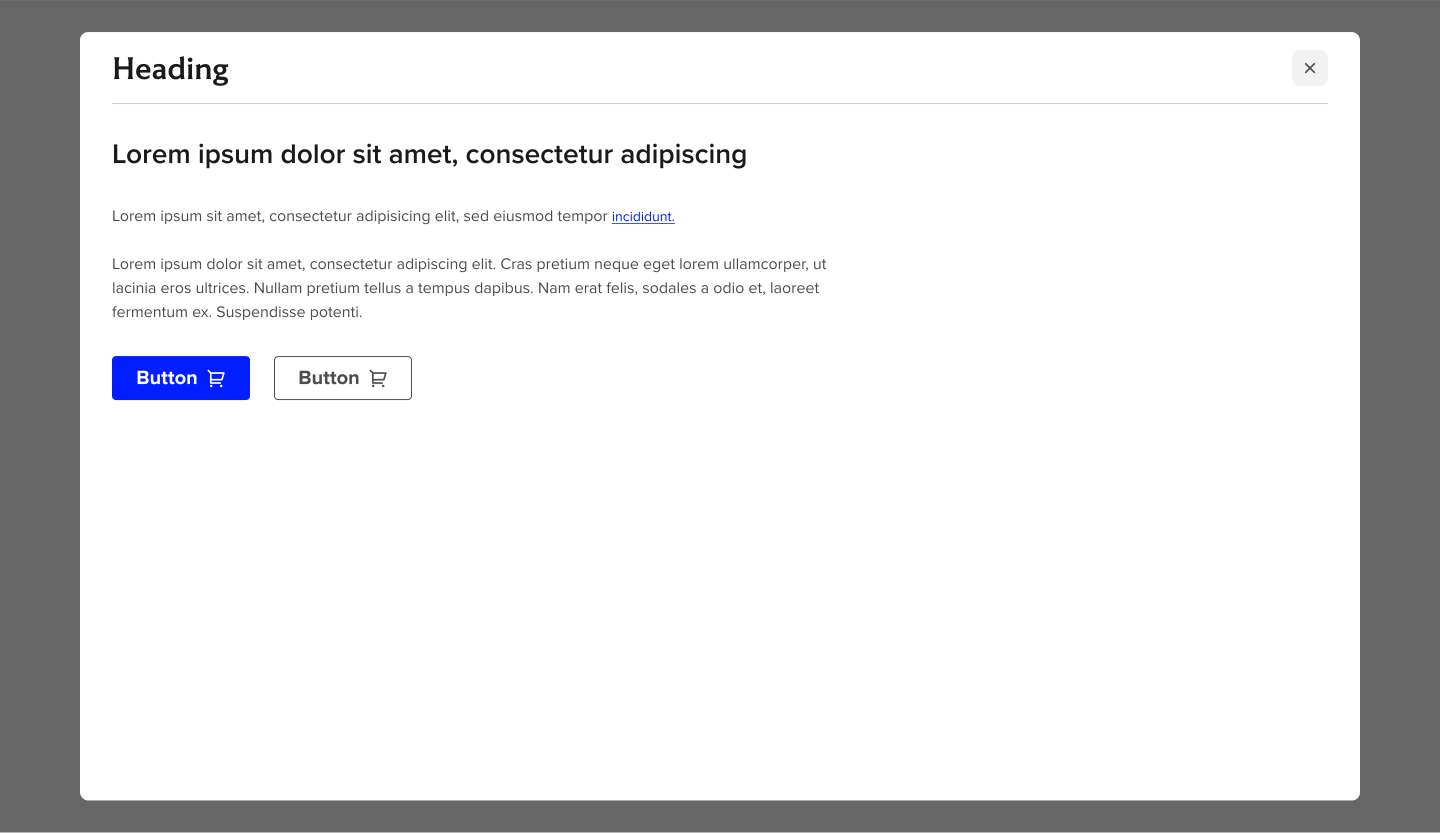
Users trigger a modal to close by either clicking the close icon’s 36x36px touch target with label or the overlay outside the modal.
Narrow
Full width
The modal consumes all columns and scales within the grid.
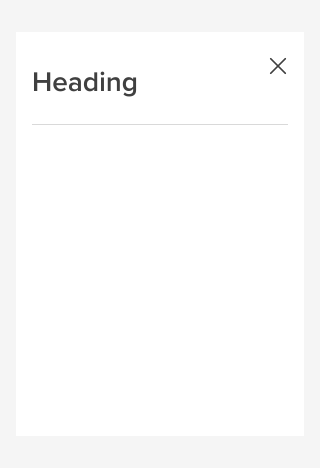
Dialog
Once the modal no longer horizontally fits within the grid at its fixed width, then it will horizontally scale within the grid.
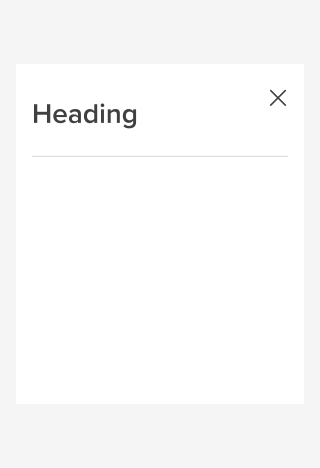
States
Outlines the atomic level interactive elements for the component.

Accessibility
Roles and states
- The element that serves as the dialog container has a role of dialog
- The dialog container element has aria-modal set to true
- Modals can include one to many components and all accessibility standards and best practices for components surfaced within a Modal should be retained
Keyboard interaction
- When a dialog opens, focus moves to an element inside the dialog. See notes below regarding initial focus placement.
- Tab:
- Moves focus to the next tabbable element inside the dialog.
- If focus is on the last tabbable element inside the dialog, moves focus to the first tabbable element inside the dialog.
- Shift + Tab:
- Moves focus to the previous tabbable element inside the dialog.
- If focus is on the first tabbable element inside the dialog, moves focus to the last tabbable element inside the dialog.
- Escape: Closes the dialog.